
Ejemplo Adaptador GUI HTML
DescriptionDescripción
ThroughHTML the(El Lenguaje de Marcado de Hipertexto) es el código que se utiliza principalmente para crear páginas web y sus contenidos. Debido a que es de código abierto y es compatible con todos los navegadores modernos, HTML es de uso gratuito y garantiza que el texto, imágenes y otros elementos se muestren según lo previsto. Sin HTML, todas las páginas web serían archivos de texto sin ningún tipo de formato.
Es la base de la mayoría de las páginas web; es la forma en que les decimos a los navegadores que estructuren el contenido en títulos, encabezados, párrafos, imágenes, enlaces, listas, formularios, tablas etc...
TAST ha creado este adaptador que nos permite interactuar con todo tipo de páginas web para navegar, extraer datos, validar, como por ejemplo para:
- Realizar una búsqueda en Google (tiempo en una ciudad) y recoger la temperatura de todo un mes.
- Descargar PDF de una página oficial del BOE. Y después realizar una serie de comprobaciones sobre pdf, pasar pdf a txt, comprobaciones en txt, etc.
- Realizar una búsqueda en alguna página de compras (Fnac, Zara, El Corte Inglés...) y comparar precios de productos, tanto entre los productos como con precios fijos.
A través del adaptador GUI HTML, TAST se conecta con aplicaciones web basadas en HTML y luego es posible probarlas. Este adaptador tiene una ayuda importante, Selective Mapping, que es un asistente de JavaScript que nos ayuda a mapear todos los elementos que encontremos en una página web.
Enunciado del ejercicio
Resolución del caso de prueba
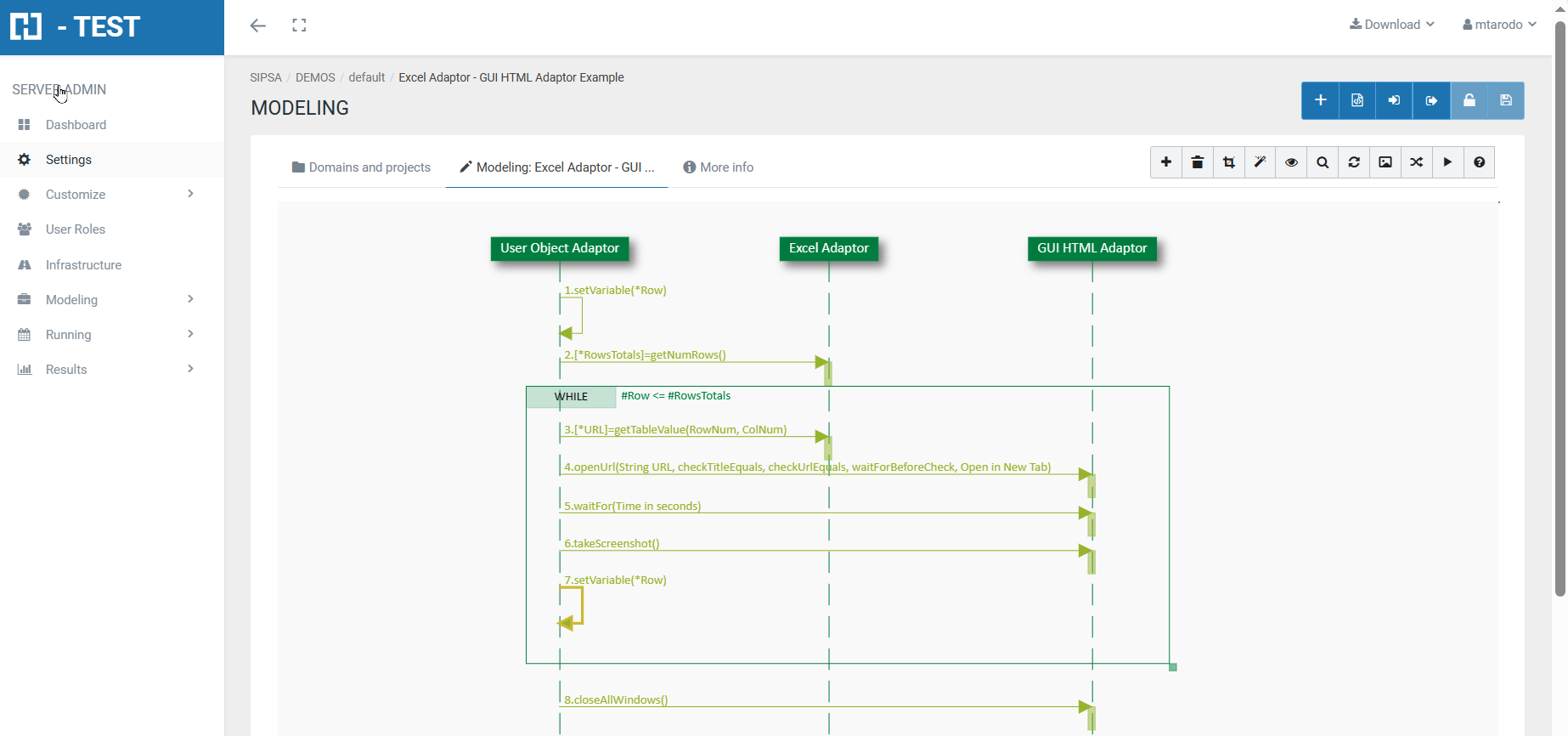
Hemos diseñado este caso de prueba utilizando tres Adaptadores: el Adaptador Objeto de Usuario, el Adaptador Excel, y el Adaptador GUI HTML. Adaptor,También H-TESThemos connectscreado withel webbucle applicationsWHILE, basedcon onel HTMLque andejecutaremos then,los it’smismos possiblepasos, tomientras testse them.cumpla Thisla adaptorcondición hasque anle importantindicamos companionen namedlas Selectivepropiedades Mapping,del whoFragmento is a JavaScript assistant bringing a more friendly user interface for helping to the creation of H-TEST mappings. It’s possible to perform single tests with this adaptor or End to end tests connecting with other adaptors either.Combinado.
Este
esStatementel ofenlace theal exercisesiguiente
diagrama: https://app.cloud1.testautomationsystemtool.com/opendiagram?id=12085
Adaptador Excel
WithEl anAdaptador Excel andintentará aleer loop,y openanalizar 6la webhoja pages:Excel. createLos anparámetros Excelde withinicialización differentnecesarios URL'spara andeste collectejemplo themson withlos H-TEST to open them in the GUI Adaptor.
Tip: use the function getNumColumns or getNumRows and use it as the end value of the loop. Use while or for loop of H-TEST.
Solving the test case
We have designed this test case using three Adaptors: the User Object Adaptor, the Excel Adaptor, and the HTML GUI Adaptor. We have also created the WHILE loop, with which we will execute the same steps, as long as the condition we indicate in the properties of the Fragment is fulfilled.
The Excel Adaptor will attempt to read and parse the Excel sheet. The necessary initialisation parameters for this example are the following:siguientes:
- FilePath:
representsrepresentathelafullrutapathcompletaandyfileelnamenombreofdelthearchivo ExcelfilequebeingestáhandledsiendobyutilizadothiseninstanceestaofinstanciathedelExcelAdaptadorAdaptor:de Excel:-
- C:\test\
URLsNewsPapers.URLsPERIODICOS.xlsx
- C:\test\
-
- Sheet:
indicatestheindicasheetelnumbernúmeroofdethela hoja del archivo Excelfileconwelaarequegoingvamostoaworktrabajar:with:1
Adaptador GUI HTML
AsLos aparámetros partde ofinicialización thepara mappingeste process,adaptador you shouldson providelos the adaptor’s information, regarding to connect and use it.siguientes:
-
Url:
firstprimera urltoalocatelocalizarwhencuandotheseadaptorcreaiselcreated.adaptador. -
Browser:
theelbrowsernavegadoryouquewillutilizaráuseeninlathe test.prueba. -
Validate Insert Values:
it’sindicaindicatessiifeltheadaptadoradaptordebeshouldvalidarvalidateoornonotlosthevaloresvaluesquewhichrecibereceiveeltheadaptadoradaptorduranteduringlatheejecución.execution.PorBydefecto,default,estáisdesmarcado.unchecked.LaTherecomendaciónrecommendationesismantenerlotodesmarcadomaintainporuncheckedrazonesfordeperformance reasons. This field is very useful in special test cases, but in general it’s not necessary to use it.rendimiento.
Functions
wehaveFunciones
usedque withhemos HTMLutilizado con el Adaptador GUI Adaptor:
- closeAllWindows: closes all the windows of the instantiated adaptor. It will close the six windows of the six web pages that we have been opening.
- openUrl: opens a new url in the browser. It has a series of optional parameters, to check if the url was opened and timeout before verifying it. In this case we indicate the value #URL.
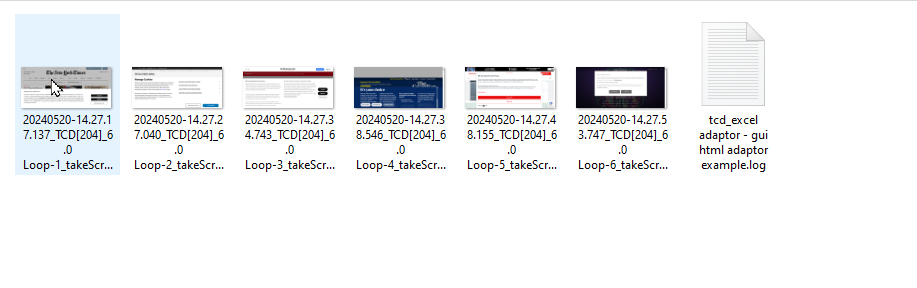
- takeScreenshot: takes a screenshot of each web page that has been opened.
- waitFor: wait the time in seconds that we indicate when mapping the message: 2.
This is the link to the following diagram: https://app.htest.testautomationsystemtool.com/opendiagram?id=204
FilesArchivos needednecesarios topara runejecutar theel casecaso
Before designing the test case, we created an xlsx file. In it we copied the six urls from six different newspapers. We have started with Row 1, Row 2,.... up to Row 6. While the column is always the same, column 3. We save it in the directory C:\test with the name we have given it, in this case C:\test\URLsNewsPapers.xlsx
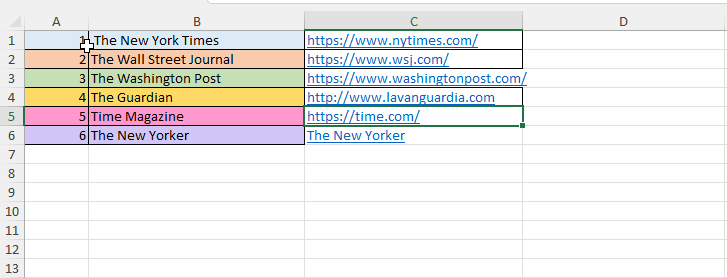
Important: before executing this test case, we must check that the .xlxs file is closed, otherwise we will get an error.
Ejecución del Test Set Execution
When we finish executing this test case, we see if it has been executed correctly:
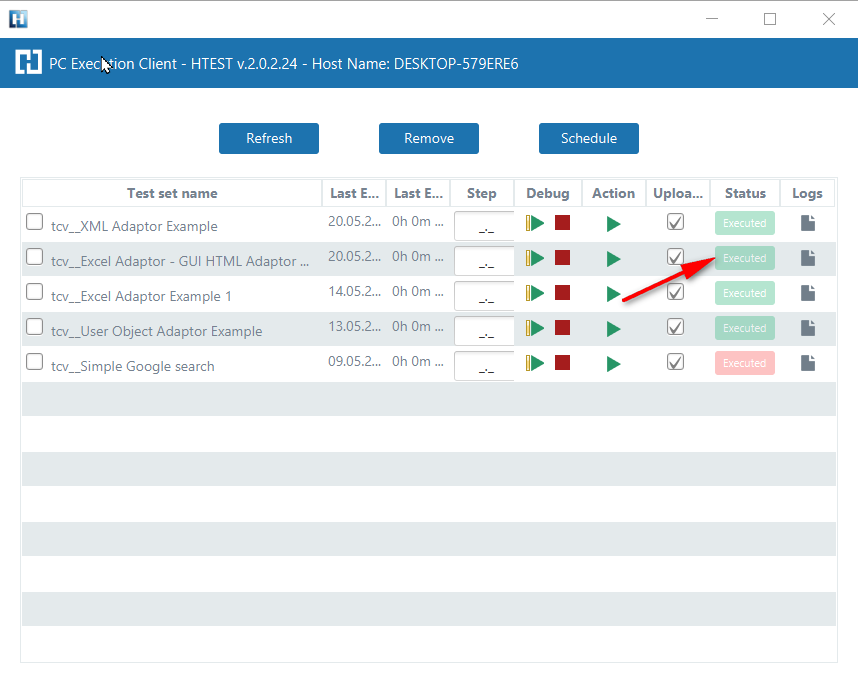
CaptureCaptura ofde resultsresultados
We then open the icon on the right (marked with a red arrow) and we have as a result the evidence folder, where both the log of the execution is stored, as well as all the screenshots, files, etc... if we have checked the "Evidence" box in the general settings of the diagram.
EvidenceCarpeta folderde evidencias
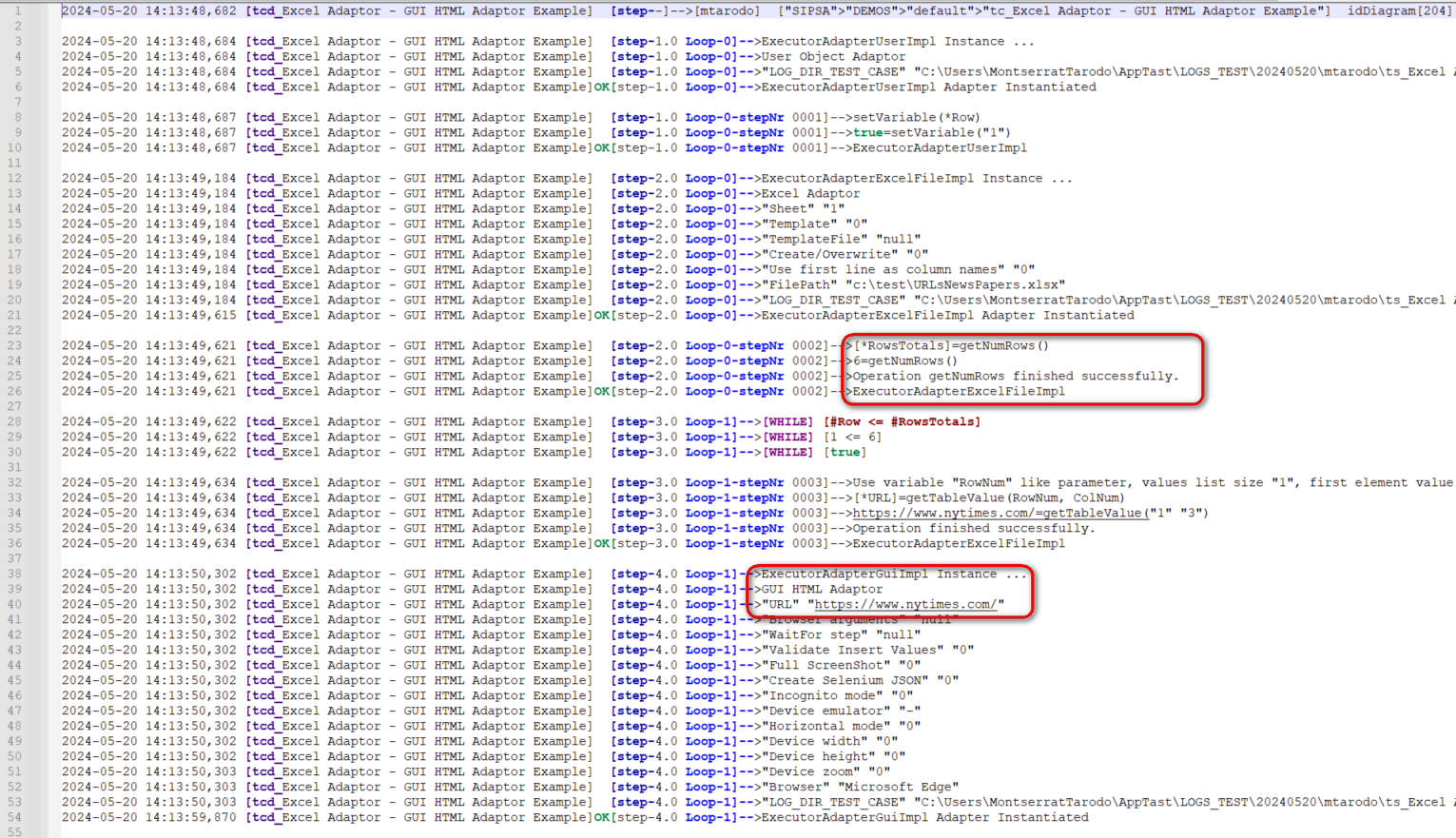
Log ofde thela execution
ejecución
When returning the results, H-TEST returns a Word document, detailing the steps we have taken, the results obtained from each step, the links to the diagram and the test set, if we have clicked on download document in the Results box.
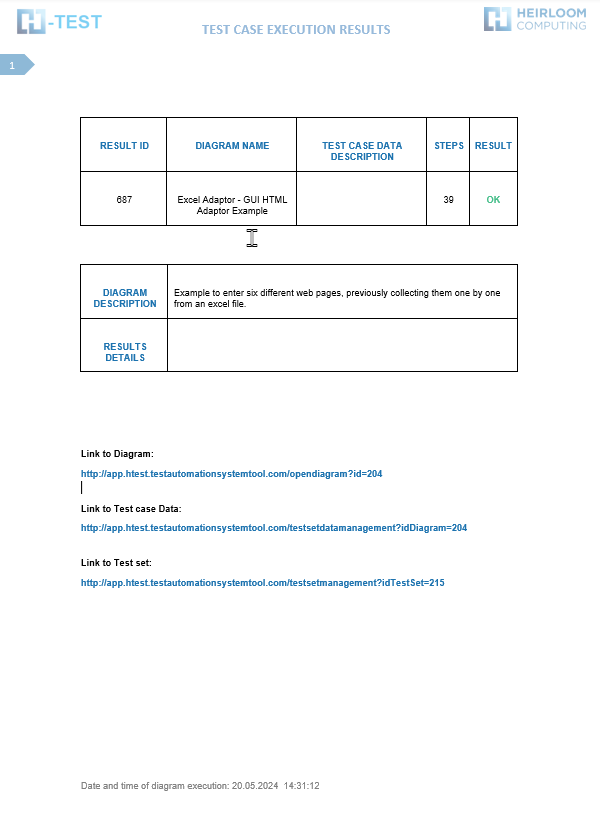
ts_Excel Adaptor - GUI HTML Adaptor Example_20.05.2024 14.31.12_20.05.2024 14.34.04.docx