
Computer setup for TAST use
For being able to use TAST, it is needed to make a short configuration in the pc to let the program work as expected, be able to use the client, and avoid the security messages to come out every time that the tool is open. First of all, a set up for the client-permissions is needed. The configuration is performed following this guide:
Guide for basic use of TAST
It will be necessary to perform the following steps:
-
Check you have Java Runtime Environment (JRE) installed. In case it is not installed, ask your administrator to install it. This is completely required.
-
Change the two environment variables: Run from the control panel → User Accounts → User accounts → Change my environment variables →
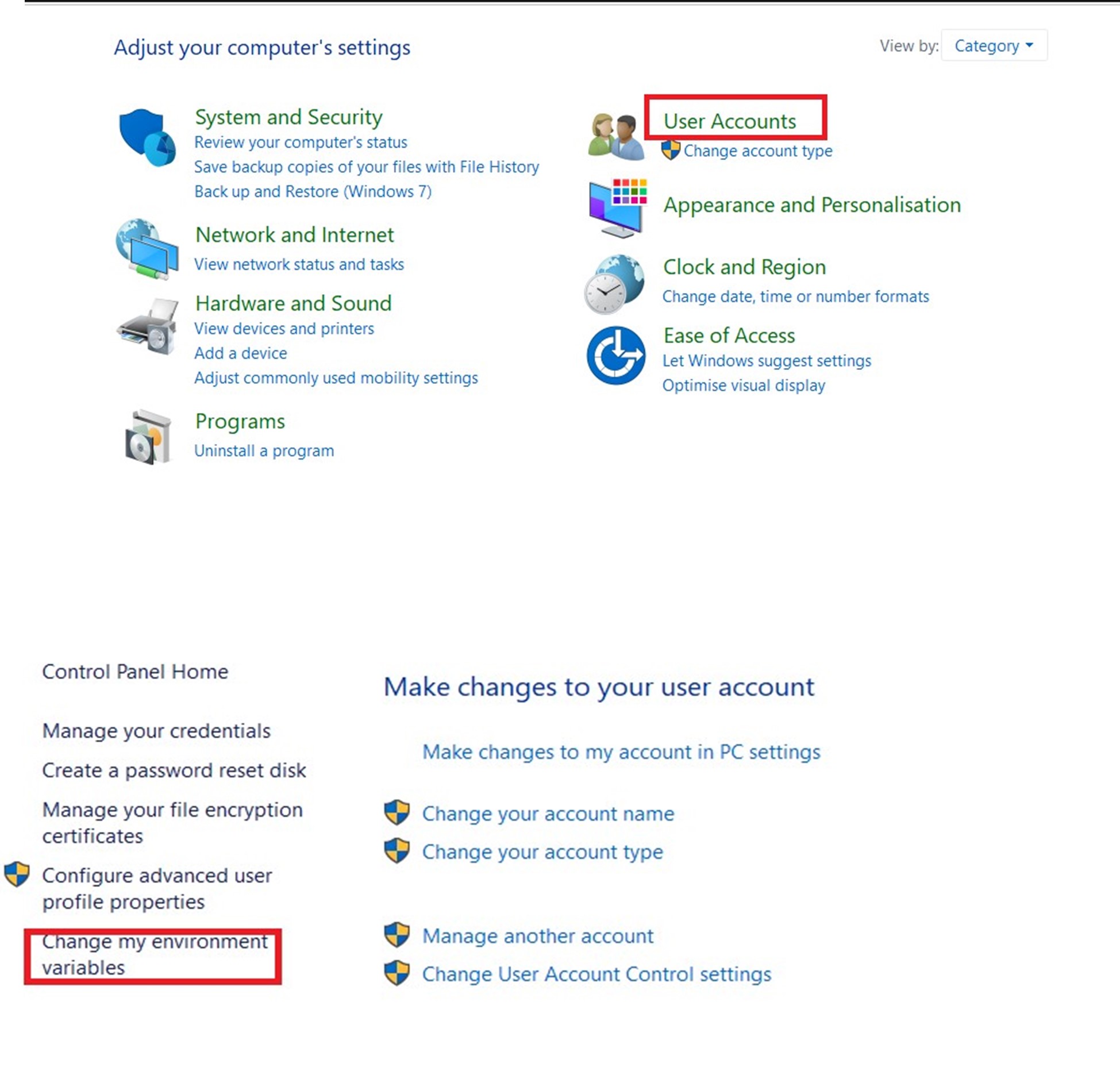
a. If you have PATH, click on “edit” while selecting it. If you don’t have it, click on “new”.
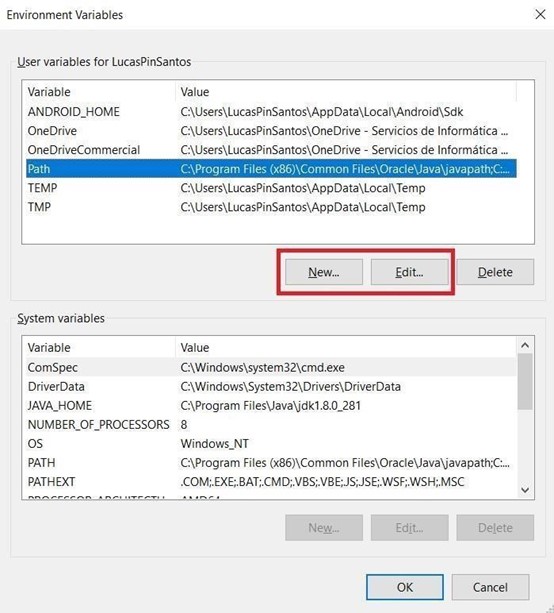
Add new values to variable PATH:
C:\Program Files(x86)\Java\jre1.8.0_281
C:\Program Files(x86)\Common Files\Oracle\Java\javapath
C:\ProgramData\Oracle\Java\javapath
(the numbers on the jre should correspond with your jre version). - Restart the PC.
-
Open java options following these steps:
a. Click the Windows start button.
b. Go to “control panel”.
c. Go to “Programs”.
d. Click on “Java”. - Add exception on the “Edit Site List” option on the “Security” tab:
a. Click on “edit site list”.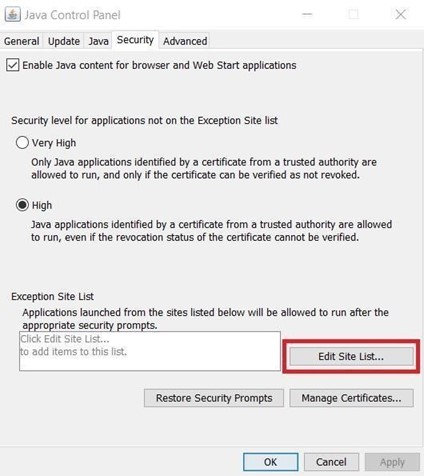
b. Click on “Add”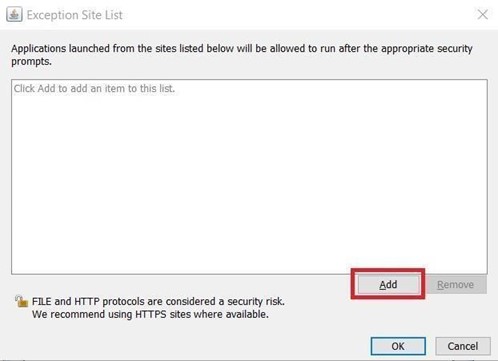
c. Add locations:
For SIPSA environment: https://app.testautomationsystemtool.com/
For Cloud1 environment:http://app.cloud1.testautomationsystemtool.com/ - Create a folder named “AppTast” on the “C:” Drive
Descarga la carpeta de los drivers de TAST de este link: https://testautomationsystemtool.com/cliente/sw/AppTast.zip
y descomprímela en la carpeta: “C:\AppTast\” que acabamos de crear.
Más adelante explicaremos la manera de actualizar los drivers desde la propia herramienta. hay que acceder a la pestaña “Sobre TAST” en la parte superior derecha de la aplicación web de TAST,
Colóquelos después dentro de la carpeta «AppTast» en el directorio en “C:\AppTast\” y a su vez, en otra carpeta llamada «seleniumDriver». Dentro de esta carpeta «seleniumDriver» habrá que separarlos en otras carpetas llamadas: “chromedriver”, “edgedriver” y “firefoxdriver”, dependiendo de los que necesites.
At the same time, here you need to separate them into other folders. These folders are called: “chromedriver”, “edgedriver” and “firefoxdriver”, depending on which ones you need.


Guide for TAST Mobile Adaptor
This will be a guide to install and set up the components required to use the Mobile Adaptor with TAST.
For some programs listed here you may need to ask your administrator for permission to install it for you.
Dowload Appium
-
In this page, you need to download the latest .exe version that matches with your computer’s operative system. If it is a Windows installation, you need to select Appium-windows-1.21.0-1.exe specifically. You cannot download a newer version.
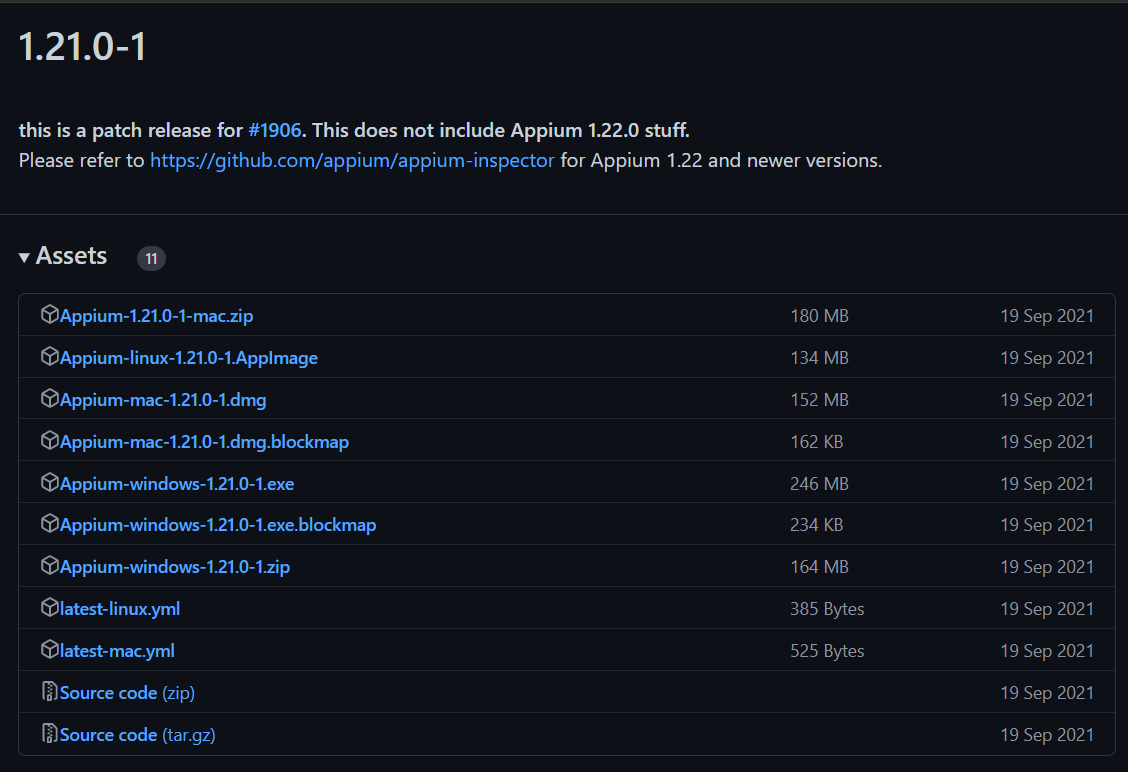
-
When the download finishes, open it.

-
A installer will appear to download the software, choose the most optimal option for you.
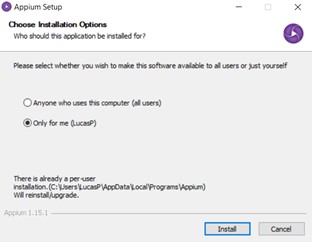
-
Wait until the installation is completed.
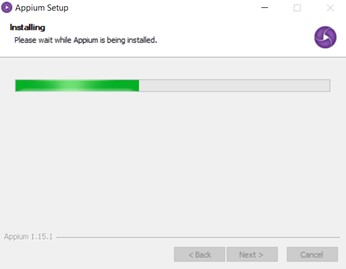
Now you have Appium installed.
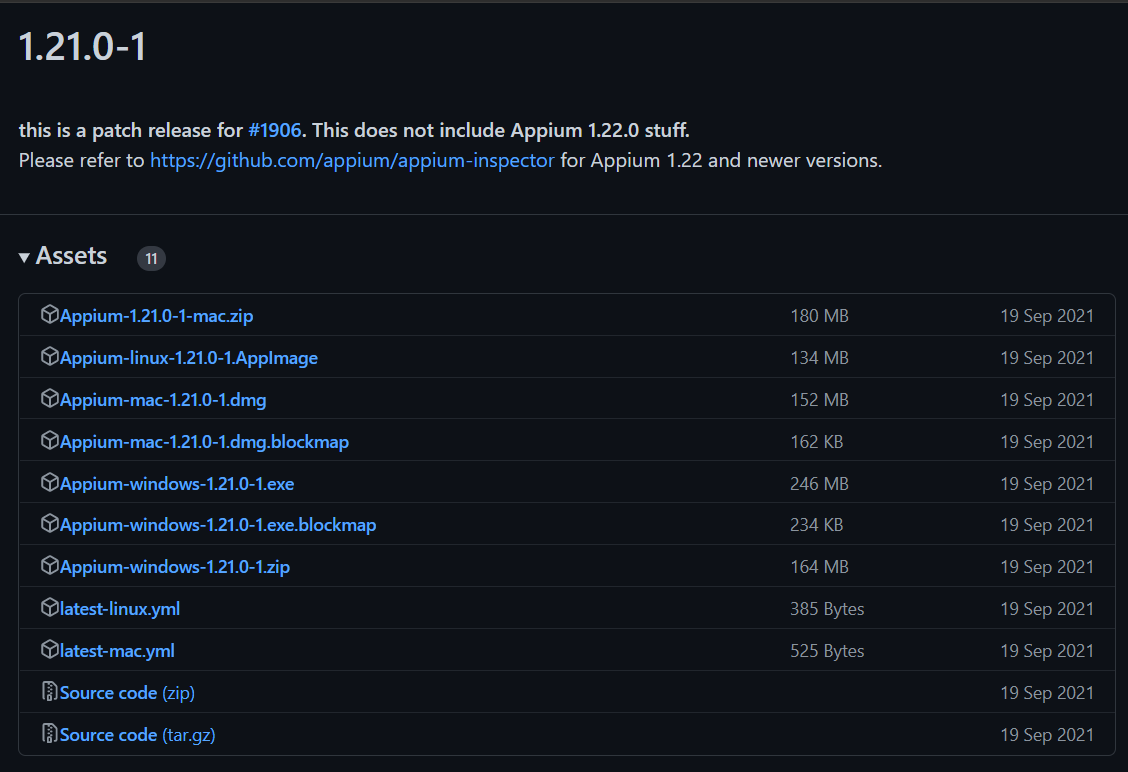



Download Android Studio
-
Download the latest version of Android Studio that suits your needs from the following link: https://developer.android.com/studio
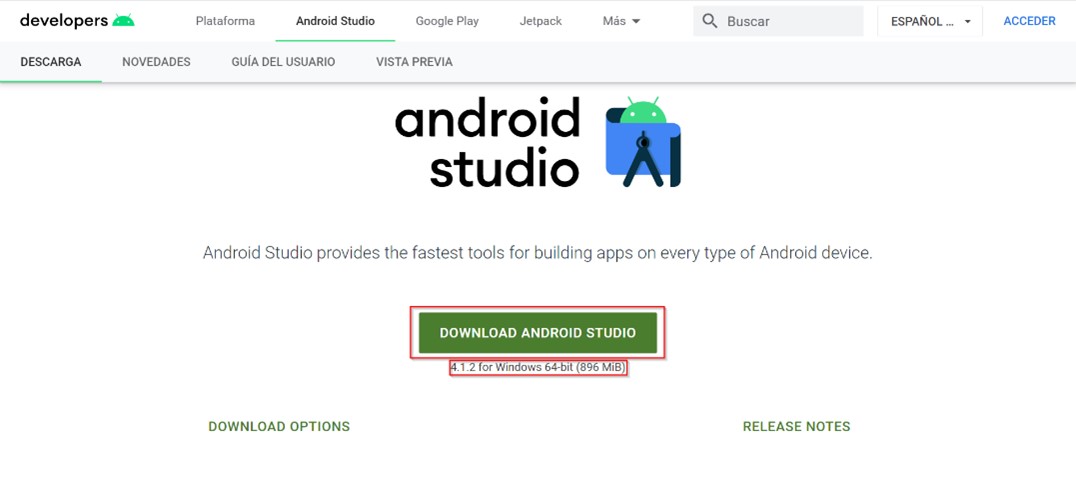
-
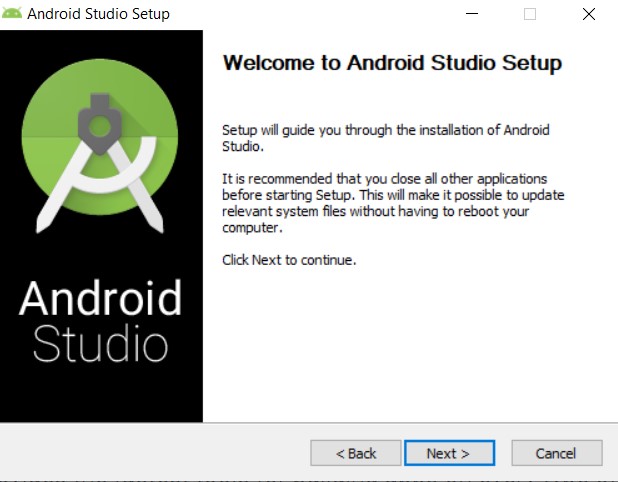
Execute the installer for Android studio, and this will appear on your screen. Click “Next” to proceed.
-
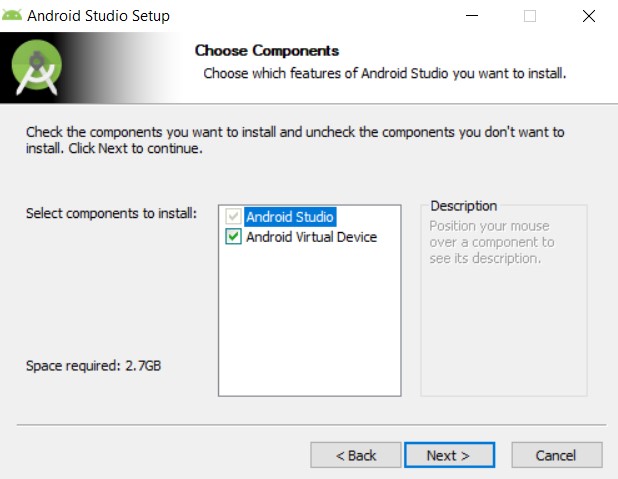
Make sure Android Virtual Device is checked and press “Next”.
-
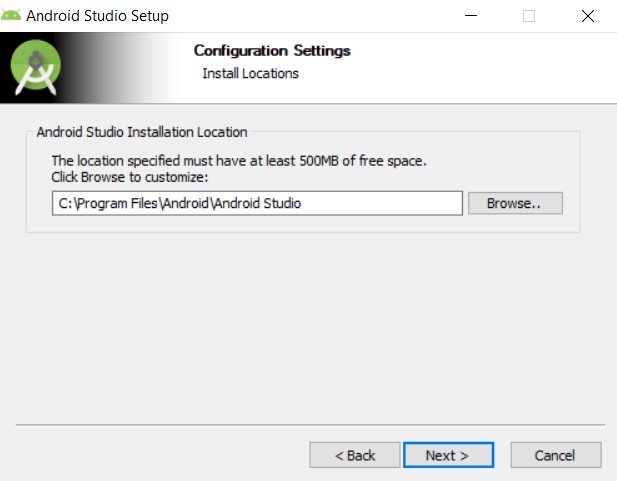
Now choose the location where you want to install Android Studio. By default it is “C:\Program Files\Android\Android Studio”, and we will use this one.
-
Once it finishes, click on “Next”, then “Finish” (with the box to initiate Android Studio checked).
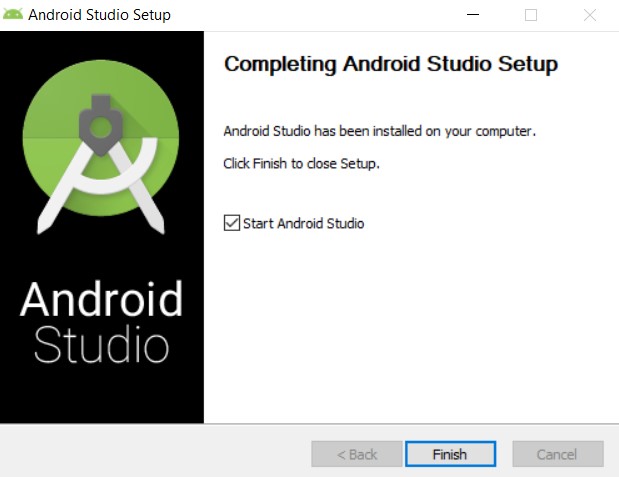
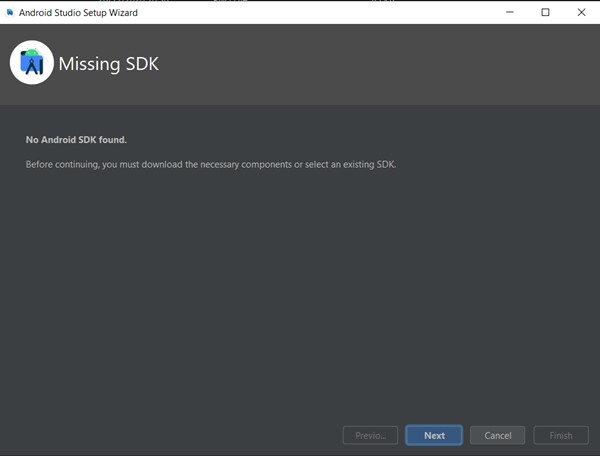
Android Studio welcome page will appear and you can start setting it up. You will see a message saying that the SDK is missing. - Click on “Next” to install it.
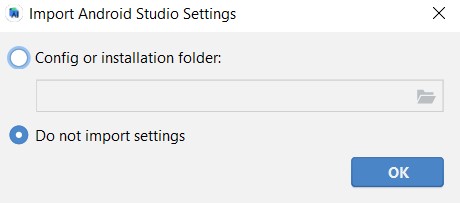
- Select “Do not import settings”.
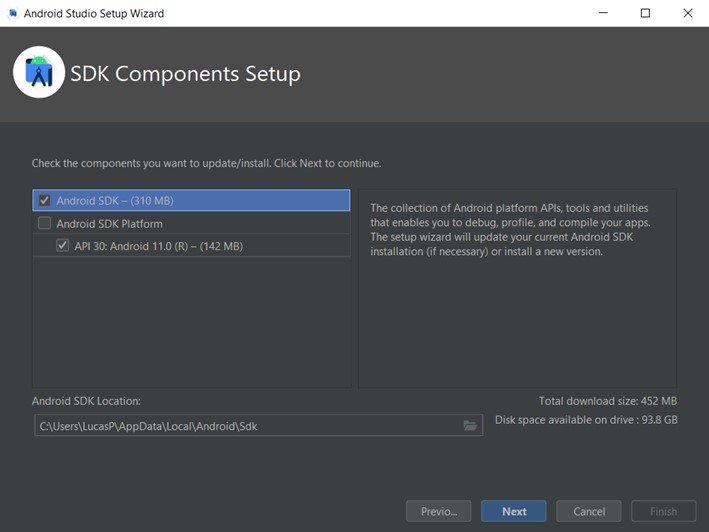
- Select what you see in the picture. Make sure the location where it will be installed is “C:\Users\YOURUSER\AppData\Local\Android\Sdk”. Then click on “Next”.
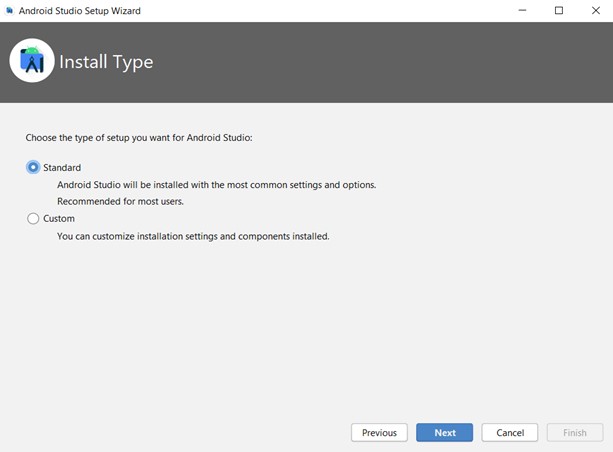
- Select “Standard” and click on “Next” again.
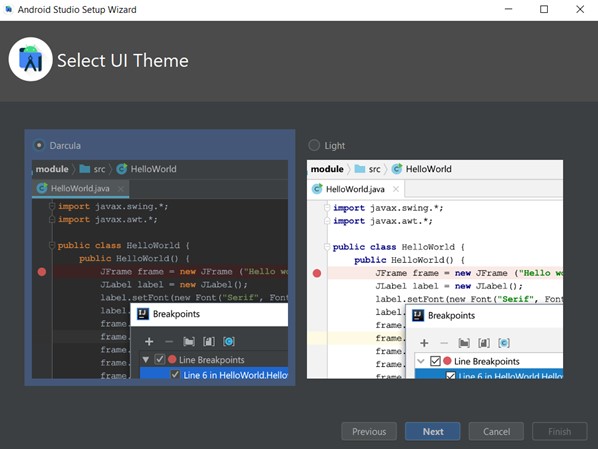
- Select the UI theme you prefer, dark or light. Click on “Next”.
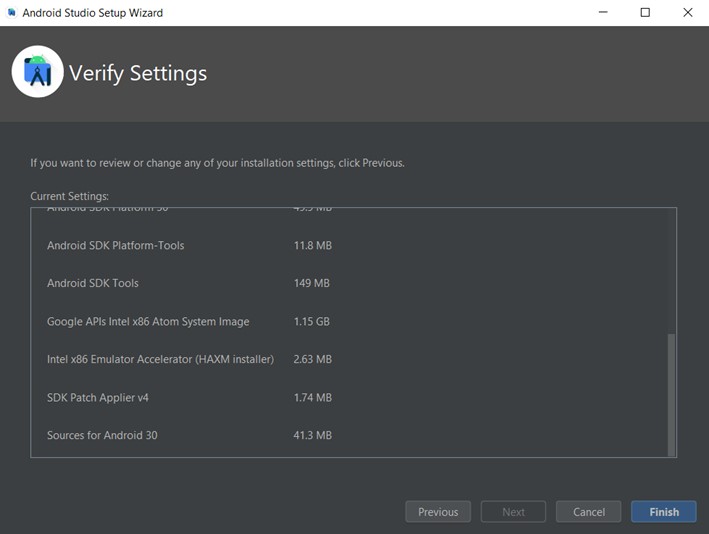
- Click on “Finish” to start downloading the components.
- After everything is downloaded, click on “Finish” again.
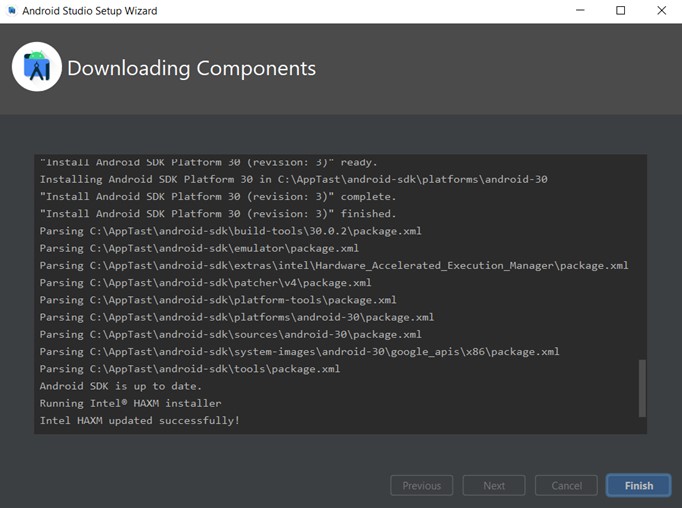
Now all components are installed, and we can proceed with the set up of the emulator.


You may need to have your BIOS modified by your administrator to be able to use the emulator, but you need to follow these steps for the Adaptor to work nonetheless.
-
Click on “Create New Project”.
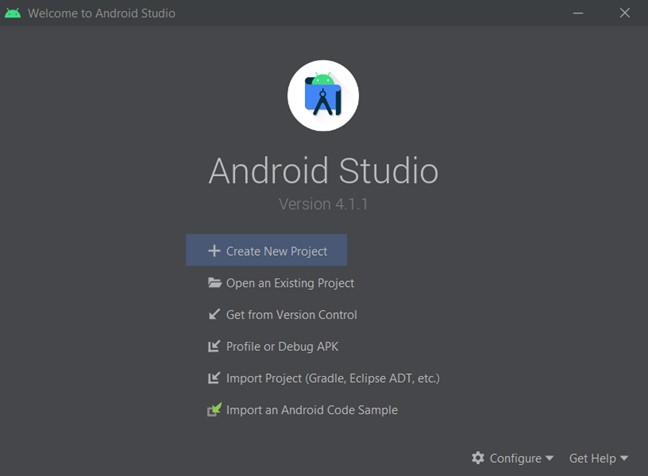
-
Select a “No activity” project template and proceed with the default configuration.
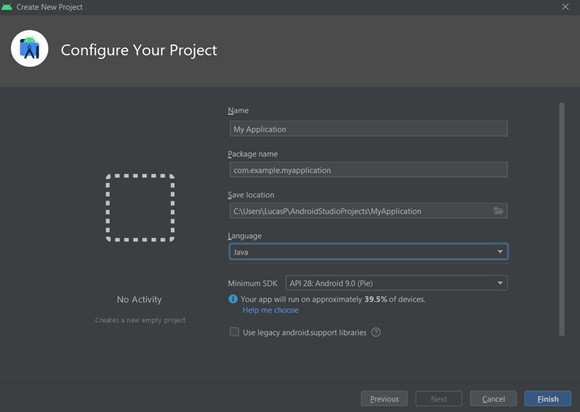
-
Click on the icon on the top right corner marked in red.
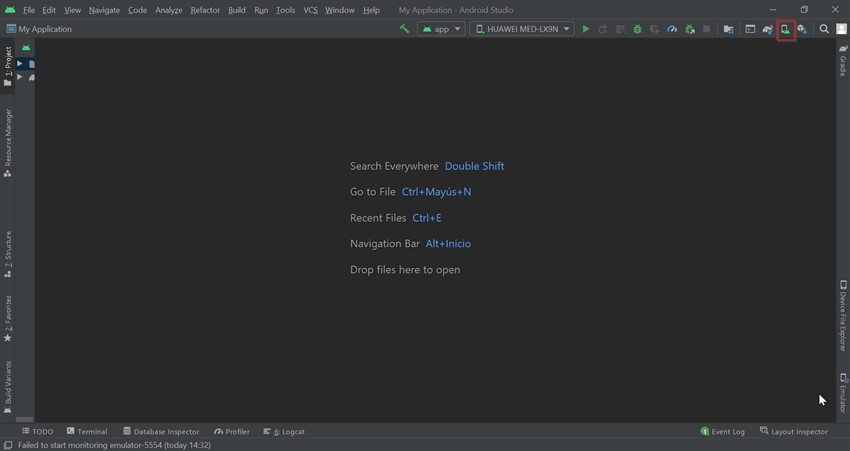
-
A pop-up with your available virtual devices will appear. To create a new one click on “Create Virtual Device…”.
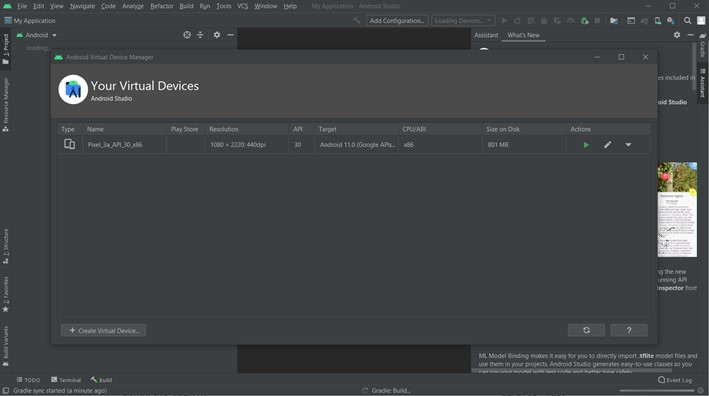
-
Now select the hardware you want to emulate, here I am using the “Nexus 5”.
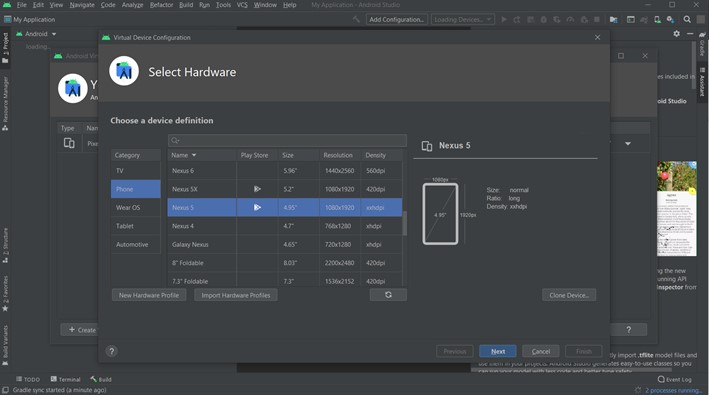
-
The first time you create a virtual device, it will ask you to download the API, we recommend installing level 28, which is Android 9.0, which is Android Pie. Select it and proceed with the installation clicking on “Next”.
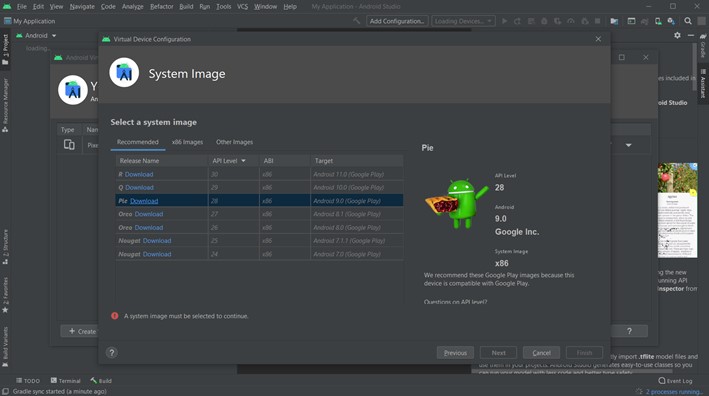
-
Read and accept the license agreement, click on “Next” again.
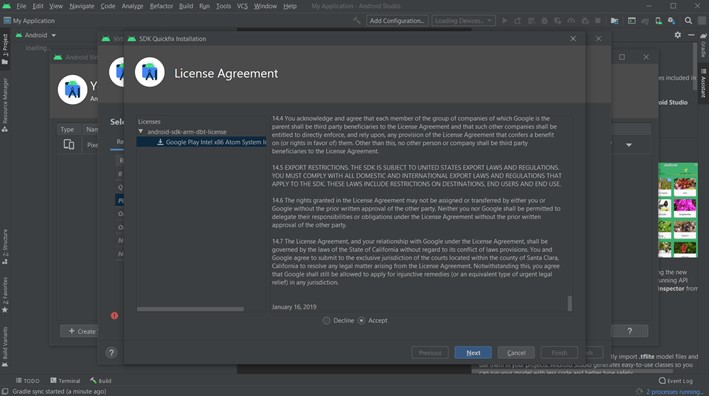
-
And click on “Finish”.
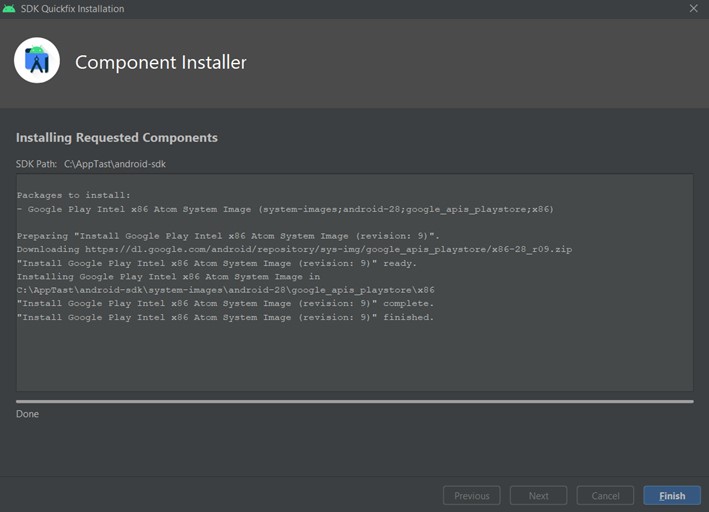
-
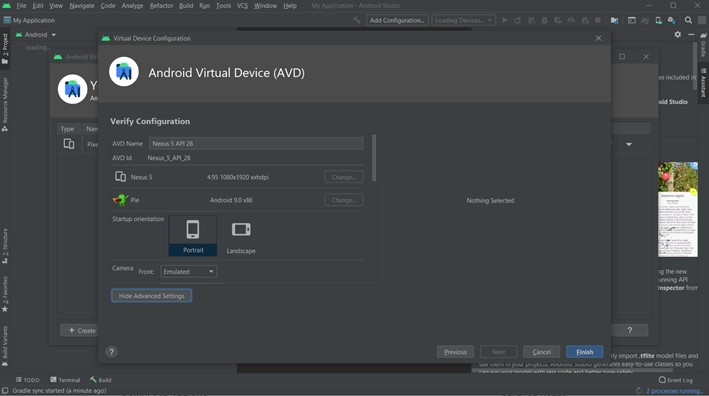
Proceed with the defaults and click on “Finish”.
-
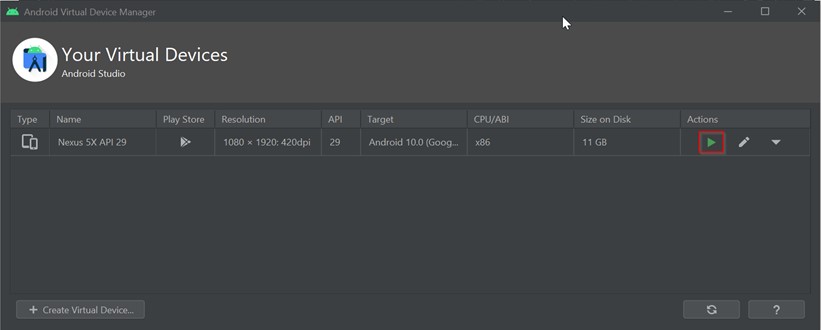
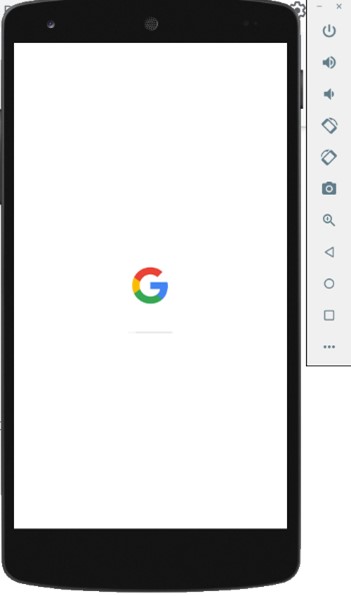
Now your device is ready. To launch it, click on the “Play” button and the device will appear on your screen (if it is activated on the BIOS).


Change Environment Variables
Press the Windows button, and type “environment”. Click on “Edit environment variables for your account”. This is the same as the first few steps on the Guide for basic use of TAST.
Here you need to make a new variable called ANDROID_HOME. And its value needs to be, if you followed the whole guide: C:\Users\YOURUSER\AppData\Local\Android\Sdk”, where YOURUSER is the username you are currently using.
Then you need to go to the PATH variable and press “Edit”. Press “New” and put in the value “C:\Users\YOURUSER\Appdata\Local\Android\Sdk\platform-tools”.
After all of this is done, restart your computer.
Configure your device to use it with Appium
-
First of all, plug in your device via USB.
-
Once it is plugged in, we need to activate the debug mode for it. This will be a default guide to activate it on many phones, this may not work with your phone model. If this is the case, search for “activate developer options in YOURPHONEMODELHERE”.
-
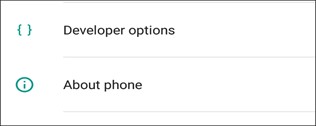
Go to settings, and search for “About phone”.
-
Go to “Build number”. Tap this repeatedly until a window pops up saying
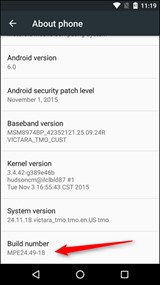
“You are now a developer” or “You have enabled developer options. -
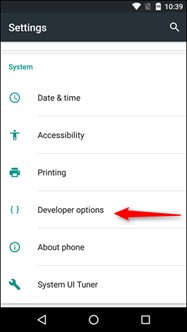
Once this is enabled, go to “Settings” and tap on “Developer options”.
-
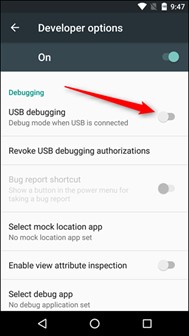
Look for an option called “USB Debugging” and activate it.
-
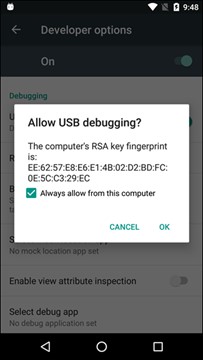
When you activate it, if the following window doesn’t pop up, unplug and plug back in your device. When the window pops up, be sure the box is checked and tap OK.
-
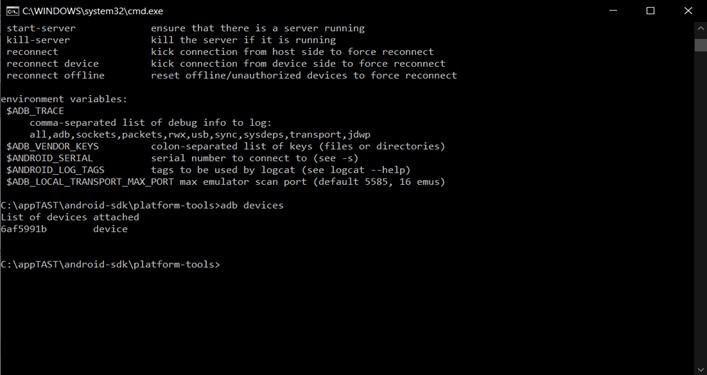
Now press the Windows key, and type “cmd”. Click on it to execute it. When it is running, type: “adb.exe” and press enter.
-
Now type “adb devices” and press enter. With this, the list with the android devices plugged to the computer will be shown.
-
We need to save the ID of our device. In this case it is 6af5991b. With this ID saved go to the Appium application.
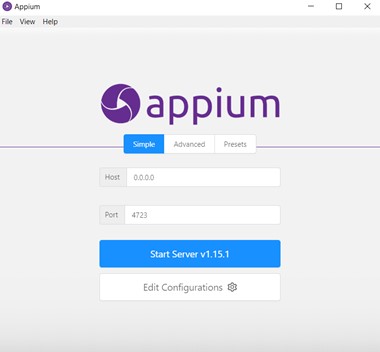
-
Click en “Start Server”.
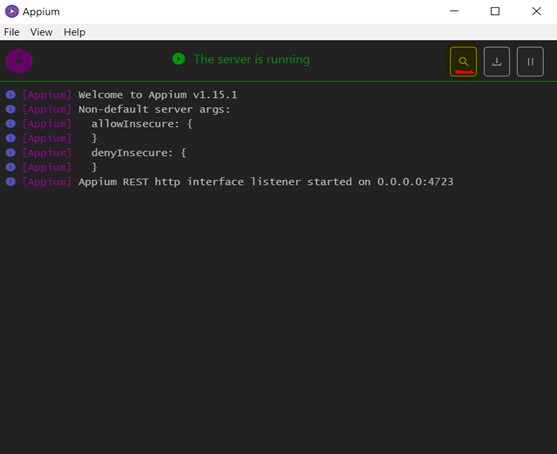
-
Then click on the magnifying glass (marked in red in the image).
-
A new window will pop up. We need to click on “Desired capabilities” and in the JSON Representation something like this:
{
“deviceName”: “YourPhoneModel”,
“platformName”: “Android”,
“platformVersion”: “x.x”,
“udid”: “the id you retrieved before”
}
DeviceName is the name you want to put to your device, we recommend to put the model of your phone (like Samsung Galaxy s10).
PlatformName will be the type of OS, in almost all the cases will be Android.
PlatformVersion is the version the device OS.
And the udid is the ID we got from the adb.exe.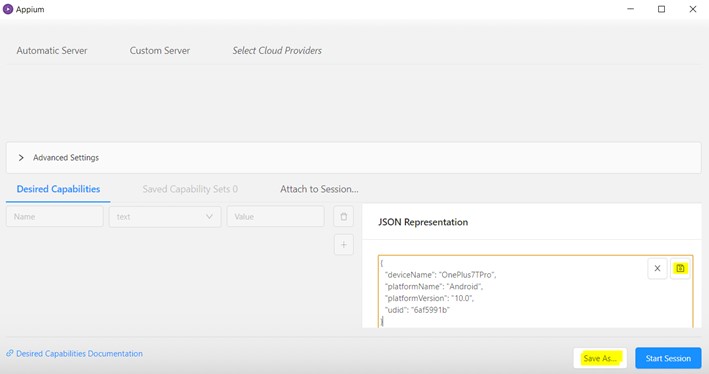
-
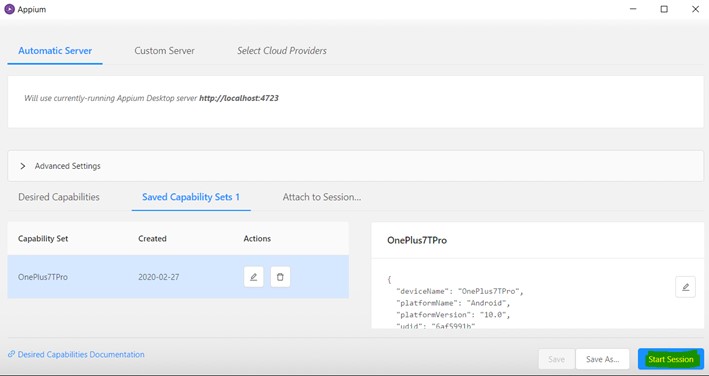
When you have completed this step, click the small save button highlighted in yellow in the image to save the JSON code. Then click on “Save As…” to save the device configuration. We recommend to type the same name you put on “deviceName” in the JSON code.
-
Now click on “Automatic Server” on the top left and use the “Saved capability set” you just saved and press “Start Session”.
-
Then a window will pop up, with your device on the left and the inspector options on the right.
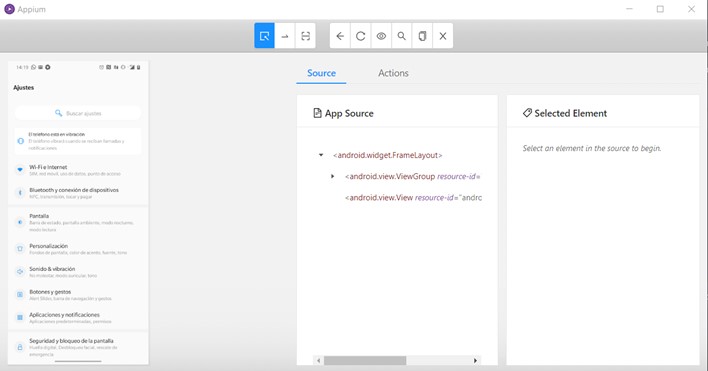


If it gives you an error when you are starting session, it might be that your phone is not well connected. Just disconnect it, connect it again and be sure that in “adb devices” it appears as a device, not unauthorized nor unknown. If it is shown as unauthorized be sure you accepted the USB debug connection in your phone screen.
If it gives you an error about JAVA_HOME you have to download jdk1.8.0_151 and install it in C:\Program Files\Java then go to environment variables, and add a system variable called JAVA_HOME (requires admin rights) with the value: C:\Program Files\Java\jdk1.8.0_151.
Guide for TAST Host Adaptor (3270/5250)
This Will be a guide to obtain and set up the necessary components to execute the 3270 and 5250 adapter with TAST.
-
Go to the directory “M:\PLM\10 TAST” and locate the folder “tk4-_v1.00_current”, and the files “jagacy3270-5.4.0.jar” and “tn5250j-0.7.6-TAST.jar”.
-
Download these files and copy them to your “C:\AppTast” folder.
-
Once this is done, to execute the 3270 adapter you need to execute the “mvs.bat” located inside the “tk4-_v1.00_current” folder for each time you want to execute a test. You open it, execute a diagram, and to be able to execute another one, you need to close it and open it again before doing so.
-
To execute tests with the 5250 adapter, first we need to set up the connection. If you want to test against any server, you can use pub400.com. You need to make an account, and you will receive two e-mails, one where you need to click the link, and another one with your user and password.
-
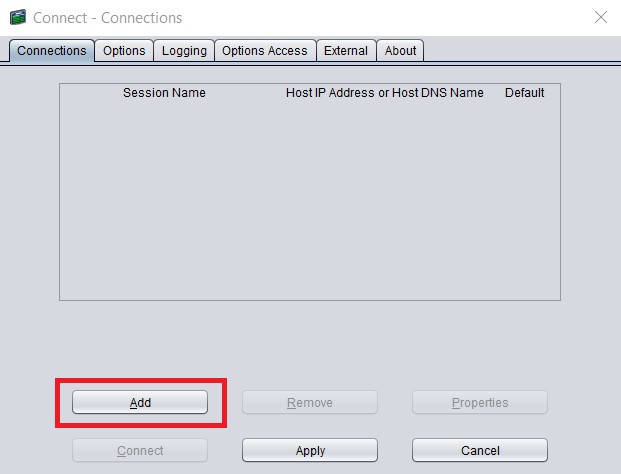
When opening the tn5250j the following window will pop up, and you will need to click on “add”:
-
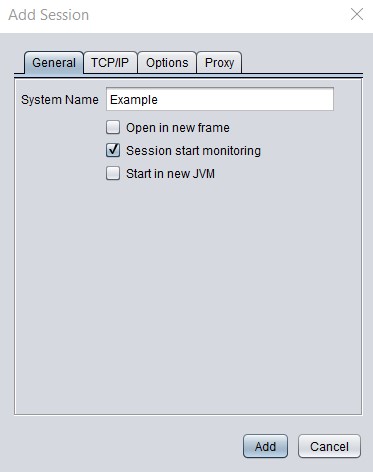
A new window will pop up to set up a new connection, you can name it however you want, and go to the TCP/IP tab.
-
Here is where we will type the host IP, in our case, pub400.com. If you need another one, you will need to know it beforehand. This will also be used on the diagram. On the “device name” you can name it however you want, or use the “Use PC name as device” checkbox.
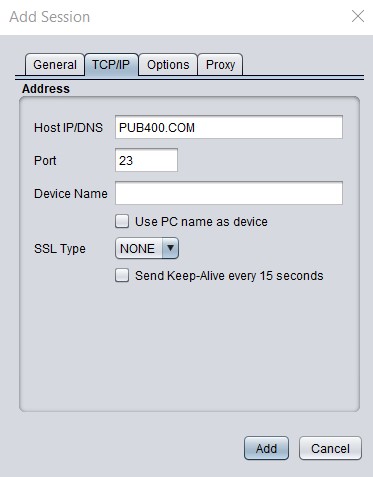
Once this is done, its already set up and you can start executing cases from the TAST client.


TAST Complement for Web Functionality
Please click on the following link for the installation, set up guide and how to use the Selective Mapping functionality, helpful when mapping messages from diagrams. This is optional:
https://wiki.testautomationsystemtool.com/doku.php?id=modeling#selective_mapping
Utility for Diagram Mapping in TAST
For the installation, set up and guide on how to use the Record & Playback for TAST, which makes the process of mapping the steps of an existing diagram easier, click on the following link. This is optional:
https://wiki.testautomationsystemtool.com/doku.php?id=record_playback
Guide for Notepad++ with colored logs
This will be a guide to install Notepad++ to be able to see TAST logs with different colors. Please follow the following steps:
-
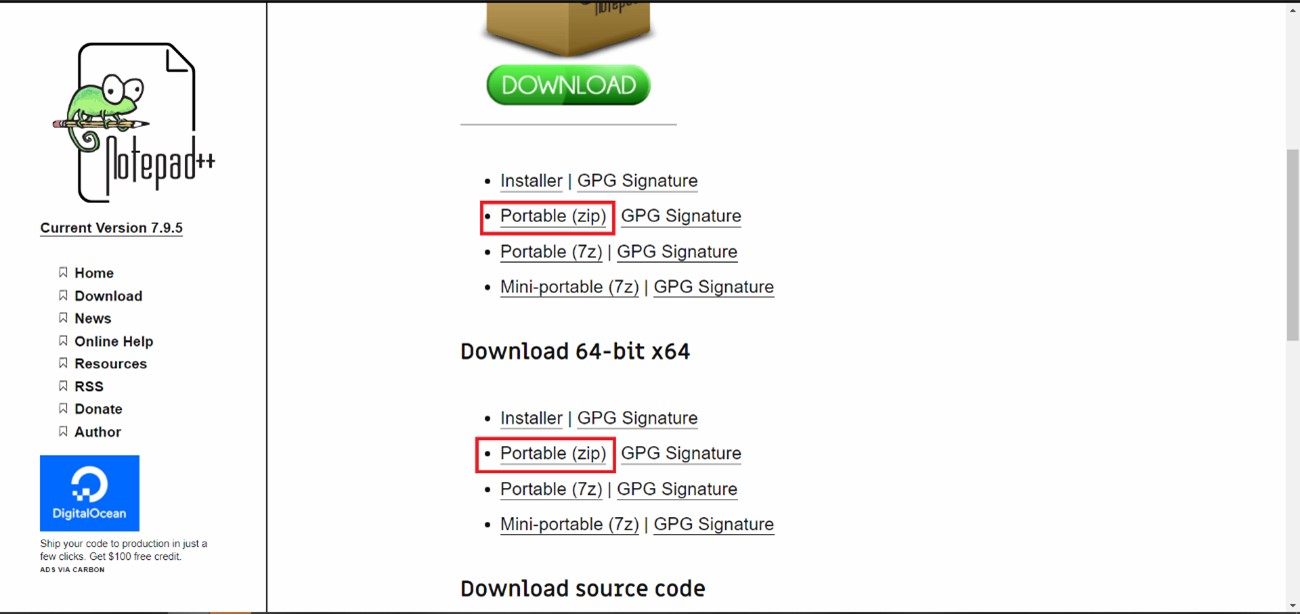
Download the latest release of the Portable (zip) version of Notepad++ from the following link: https://notepad-plus-plus.org/downloads/. For 32 bits if your system is 32 bits, and 64 if your system is 64.
-
The language can be downloaded from this link: https://www.sipsa.net/wp-content/uploads/2021/10/tastxml-2.zip
-
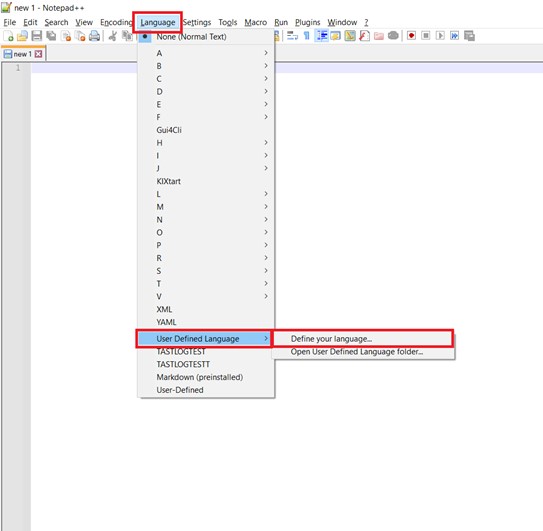
Open Notepad++ and go to Language → User Defined Language → Define your language.
-
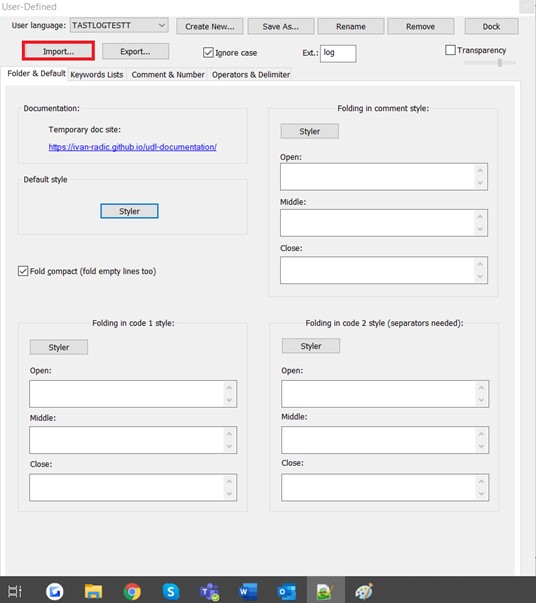
Press “Import” and choose the “TASTLOGTEST.xml” file you just downloaded.
-
Press “Save as…” and name it with the name you want, for example, TASTLanguage, or TAST.
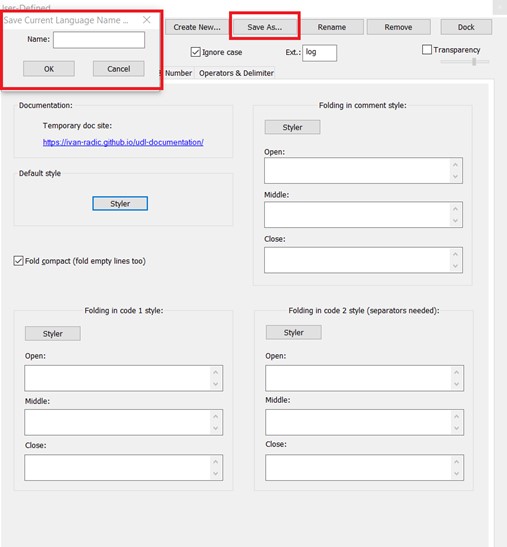
Now, whenever you open a .log file, you can go to Language and choose the name you just saved at the bottom, and the log file will be have important words colored. If you want to add more words, you can edit it with the same previous route: Language → User Defined Language → Define your language.


