
Identificación de objetos por CSS Selector
Esta página no está en español en la antigua dokuwiki, preguntar a Ana, ¿si la hemos quitado por algún motivo? o no está por otro.
Como se dijo en Identificación de Objetos, CSS Selector es una forma simple y fácil de identificar objetos en HTML (identificando uno o muchos elementos) y muy útil.
Cuando se selecciona un objeto, en las pruebas, es necesario ser específico, y para ello, el uso de CSS tiende a conducir a selectores como span[name='coches'] en lugar de la forma XPath
bodydiv/spn/span/table/tr/tr/tr/td/td/td/td/span[@name='cars'].
CSS Selector se basa en definir el tipo de elemento añadido a la definición de uno o varios atributos. También es posible definir sólo el tipo de elemento (esto tiende a ser inexacto) o sólo los atributos (uno o más). Al final de la página, algunos ejemplos muestran la forma de hacerlo.
Formula:
The formulation of a CSS Selector can be defined by two formulas:
-
element[attribute(*|^|$|~)='value']
-
element(sym)'value'
The element portion will be what element kind needs to be selected. The attribute portion will be what attribute the user is selecting on. The (*|^|$|~) portion is an optional comparison operator depending on what is needed (For example: Equals ( = ); Starts with ( ^= ); Ends with ( $= ); Contains ( *= ); Contains in a list ( ~= )). (sym) represents the shortcut created for the two most used attributes (ID and class).
In case the user wants to specify more than one attribute to recognize the element, this is also possible by concatenating more than one specification, one right after the other. Using this way, we look for the element that complies with BOTH conditions, as in the sentence elementtype[attribute1(*|^|$|~)='value1'][attribute2(*|^|$|~)='value2'] a the element has to be an “elementtype” element, with the “value1” in “attribute1” and the “value2” in the “attribute2”. It would be also possible to use the selector [attribute(*|^|$|~)='value'] but this way will make the selector to run over all the elements, and not only over the ones that match the type of element that we are looking for, thus is higly recommendable to use the element type for speeding up the process.
For some of the most used attributes, there are some shortcuts that can be used to ease the tester job. They work as the followinng sentence element(sym)'value' where the element portion represents the kind of the element selected and (sym) is the symbol needed (see explanation below). The symbols are # for the IDs (element#idvalue or #idvalue) and . for the classes (element.classvalue or .classvalue). User can also join this two ways, for creating a sentence similar to element(sym)'value'[attribute='value'].
There is also a possibility to nest the elements (it means, to refer to an element depending on the parent element). It is done with the symbol > as in the sentence parentelement[attribute=attrvalue]>element[attribute=attrvalue] or any of the other possibilities said before instead.
Examples:
The images below show, for instance, some different ways to identify an object:
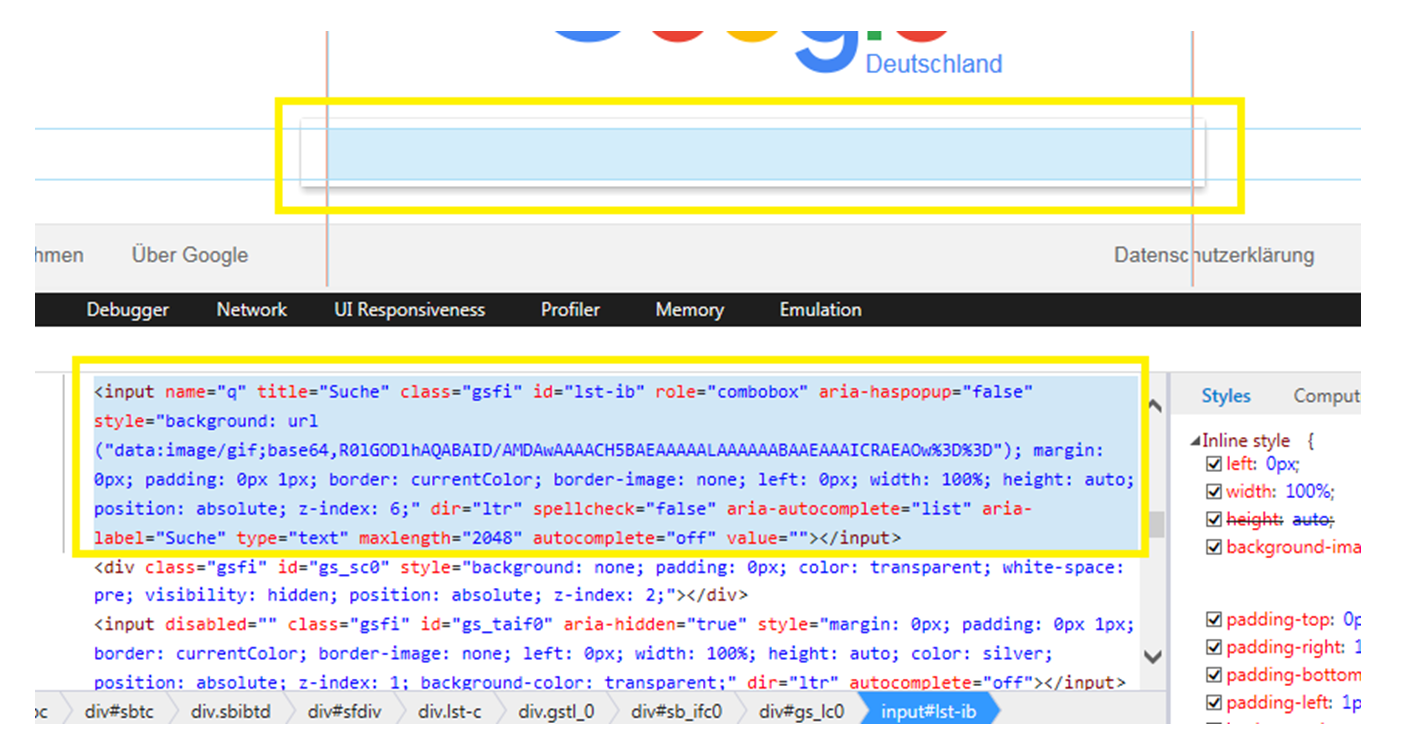
In this specific case, there is an ID. It is usually the easiest way to ensure an unique identification, so any of the following are supposed to find the element without problems:
-
input#lst-ib
-
#lst-ib
-
input[id='lst-ib']
-
[id='lst-ib']
-
input[id$='-ib']
-
input#lst-ib[role='combobox']
-
#lst-ib[maxlength='2048']
-
input[id='lst-ib'][style*='image/gif;base64']
The last three are, in this case, unnecessary, due to there are no more elements with the “lst-ib” ID. Even so, it is possible to add as much info as needed to the sentence.
In case the object had no ID determined, it would be possible to concatenate as many attributes as we think are enough for identifying only the desired object:
-
input[title='Suche'][aria-label=“suche”][name='q']
As a second example, in the image at the right side, there is another screenshot where can find no ID attribute for the <div> “Deutschland”. This is an element that has a class “logo-subtext”. The user can face two scenarios (this class represents univocally the element or not). Regarding the first scenario, some possibilities would be:
-
div.logo-subtext
-
.logo-subtext
-
div[class='logo-subtext']
-
[class='logo-subtext']
If the case is not as said before, we can join more than one attribute or condition, in order to make the identification possible. Since this element has no more attributes, the user can get advantage of the nest functionality of CSS Selector:
-
#hplogo>div
-
#hplogo>div.logo-subtext
-
[id='hplogo']>div
-
div[title='Google']>div[class=logo-subtext]
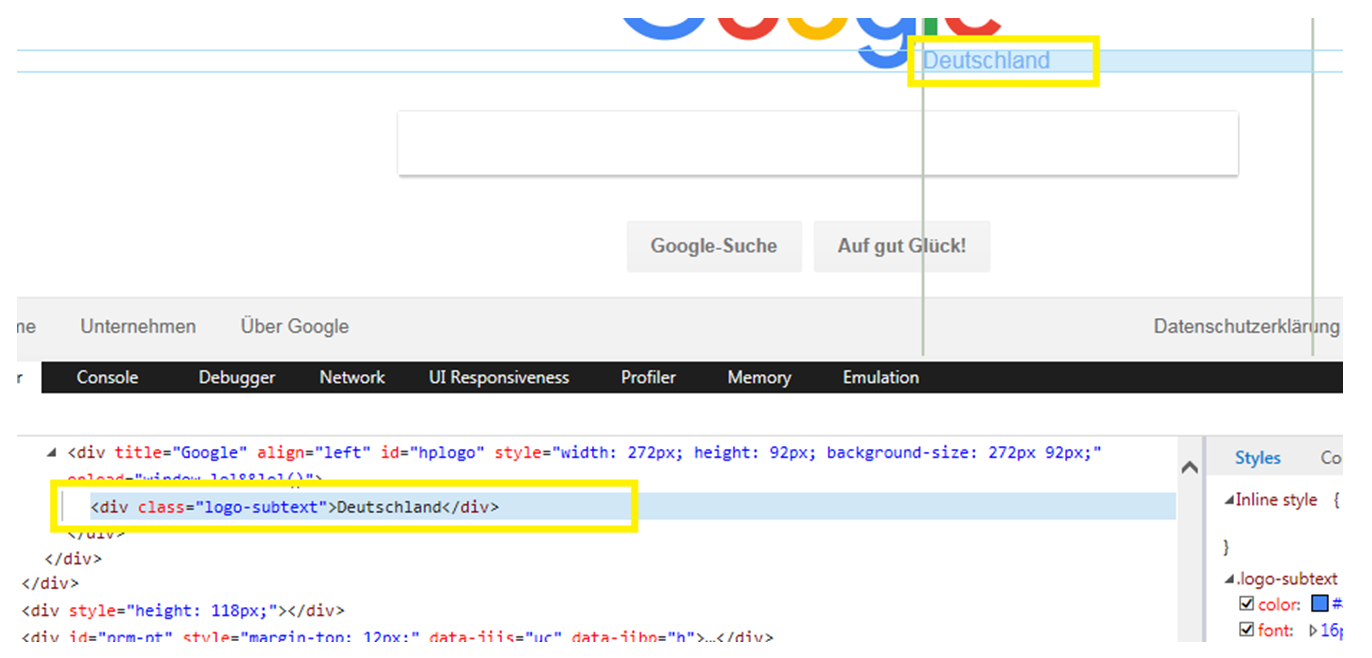
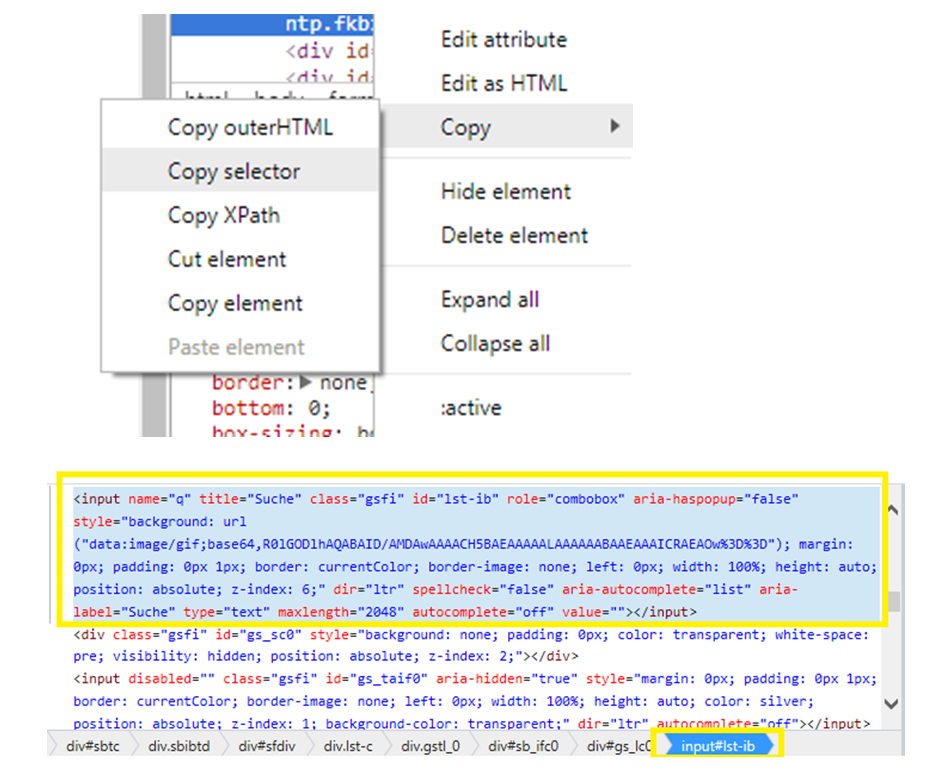
As is seen in the first image, there is a possibility to get directly a CSS Selector by choosing the element and seeing (not possible to copy) the code in the very right bottom of the image. If using Google Chrome, it also possible to click with the right button in the element needed and click on “Copy selector”.
Para más información sobre el selector CSS pulsamos aquí.