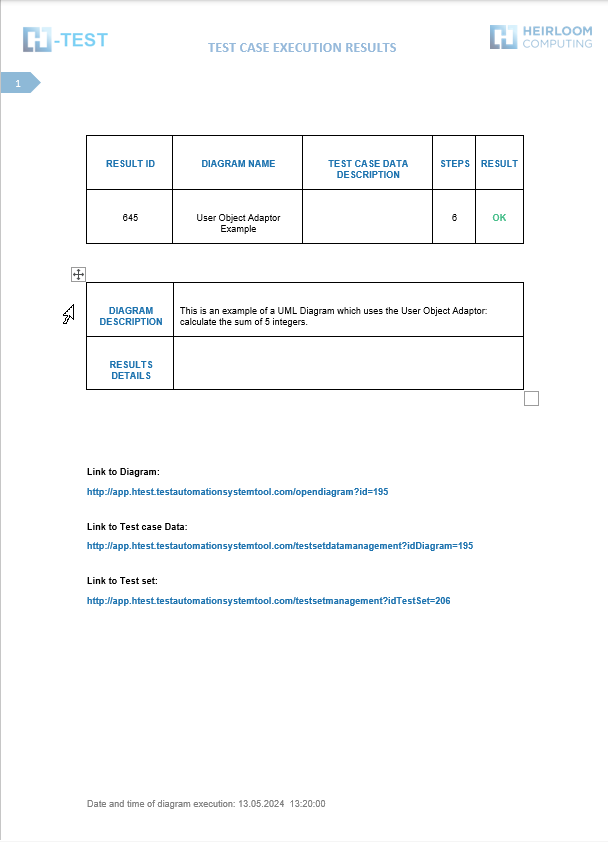
Ejemplo Adaptador Objeto de Usuario
English
Descripción
A través del Adaptador de Objeto de Usuario, TAST utiliza su entorno de memoria para gestionar variables, con respecto a ayudar en el control del flujo de ejecución del diagrama. El Adaptador de Objeto de Usuario, es el adaptador que permite realizar las comparaciones y comprobaciones que un usuario final realizaría manualmente, es decir, automatiza las funciones que puede realizar un tester, comparación de datos, establecimiento de condiciones, etc.
Las funciones predefinidas que aporta este adaptador se pueden clasificar en varios grupos:
-
Funciones para la manipulación de variables de diferentes tipos. Con estas funciones se pueden crear e inicializar variables de diferentes tipos (Date, String, Integer, TASTTABLEDATA, …..), se puede preguntar por la existencia o no de una variable, se puede eliminar una variable, comparar, etc:
-
-
setVariable, setArrayVariable, isExistVariable, removeVariable, compareVariables, compareParameters
-
-
- Funciones para el tratamiento de fechas:
-
- dateAddition, dateDifference, dateWeekDay, getCurrentDate, getCurrentDateAsDate, getCurrentDateAsString
-
- Función para el envío de un correo:
-
- sendEmail: esta función permite enviar un correo indicando los campos “para”, “asunto”, “cuerpo” y “adjuntos”, pero además tiene una funcionalidad añadida y es que si se quiere te permite adjuntar el resultado de la ejecución del TestSet.
-
-
Función para la copia de un archivo:
-
-
copyFile.
-
-
-
Funciones para ejecutar un comando en el sistema operativo Windows o ejecutar una función JavaScript:
-
-
executeCommand,executeCommand,executeCommandParam,executeCommandParam, executeJavaScript
-
-
- Función para salvar como evidencia los repositorios utilizados en la ejecución del proceso:
-
- saveRepositoryAsEvidence
-
- Función para tratar la respuesta de un mensaje:
-
- assertion
-
- Funciones para el tratamiento de teclas:
-
-
sendKeys,sendKeys,sendKeysCombination,sendKeysCombination, sendKeysPaste
-
-
- Función waitFor para esperar un determinado periodo de tiempo.
- Función takeScreenshot para realizar una captura de pantalla.
- Función ManualTast: esta función inicia el proceso de ”
intervencióIntervenciónmanual”Manual” que es una funcionalidad que permite al usuario realizar y documentar casos de prueba de forma manual, generar evidencias y subir los resultados a ALM . Es una ayuda para realizar pruebas de forma ágil en aquellos casos en los que la automatización no es posible
Enunciado del ejercicio
Calcula la suma de 5 números enteros.
Resolución del caso de prueba
You have to declare them as a variable in H-TEST:
- setVariable(): creates a variable whose name is entered as a parameter. The types of variables are: TastTableData, String, Integer, Double, Date or Boolean. We have declared five variables, type INTEGER and we have given a value to each one:
-
-
- Variable 1 =
valuevalor 2 - Variable 2 =
valuevalor 11 - Variable 3 =
valuevalor 15 - Variable 4 =
valuevalor 43 - Variable 5 =
valuevalor 7
- Variable 1 =
-
This is the link to the following diagram: https://app.htest.testautomationsystemtool.com/opendiagram?id=195
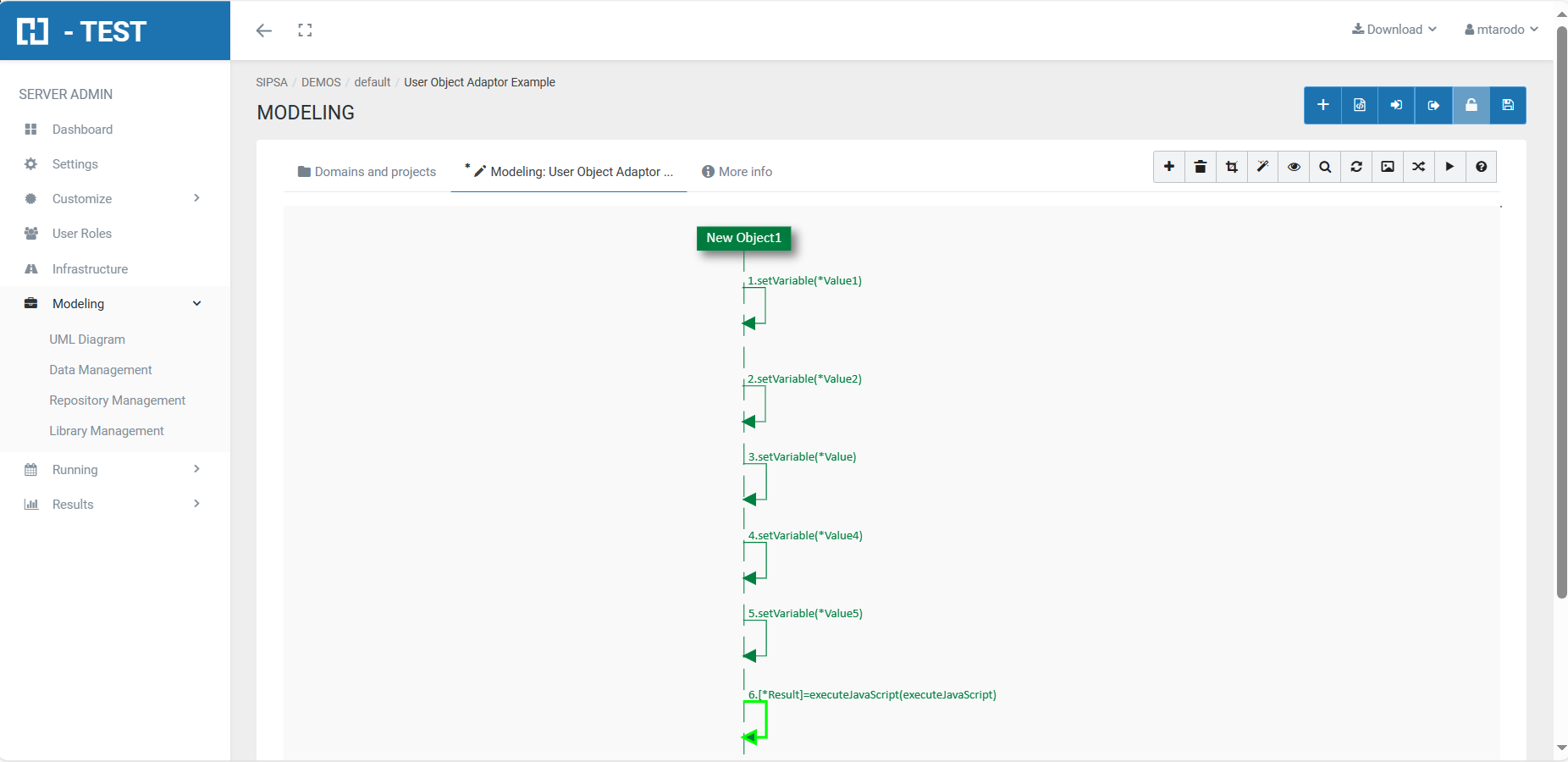
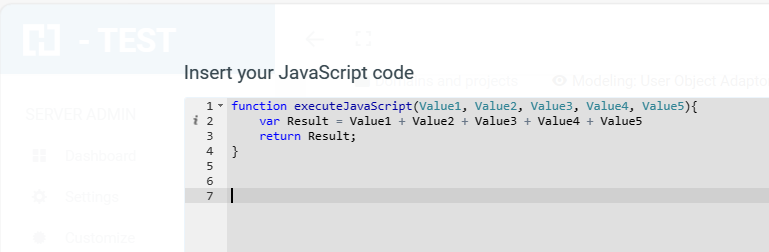
To perform the addition:
- executeJavaScript(NameFunction): executes the javaScript function whose name is entered as a parameter. The function may have input parameters and return a value. The input parameters will be the variables defined with setVariable, or the results of other predefined functions. The value returned is stored in the output variable.
Ejecución del Test Set
When we finish executing this test case, we see if it has been executed correctly:
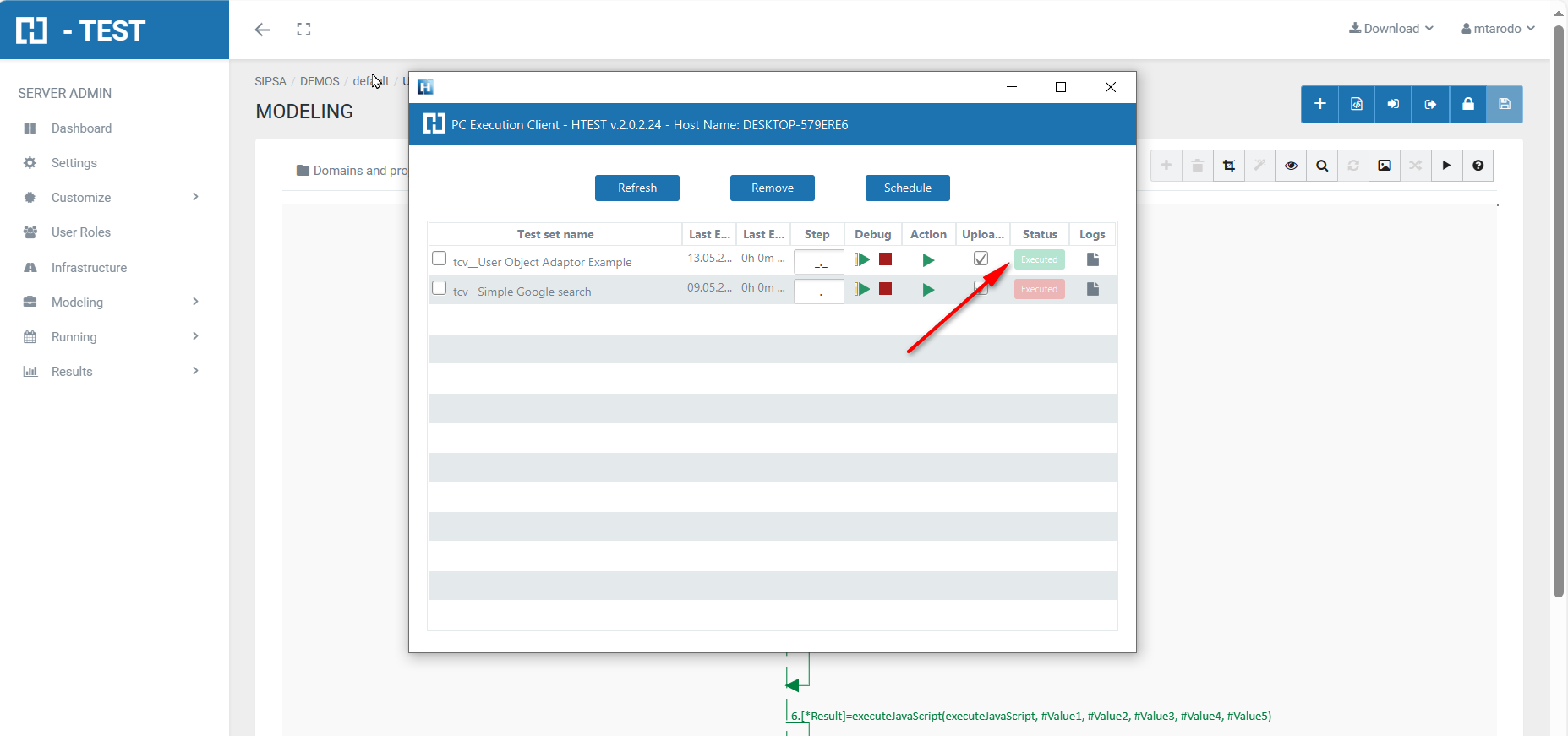
Captura de resultados
We then open the icon on the right (marked with a red arrow) and we have as a result the evidence folder, where both the log of the execution is stored, as well as all the screenshots, files, etc... if we have checked the "Evidence" box in the general settings of the diagram.
Log de la ejecución
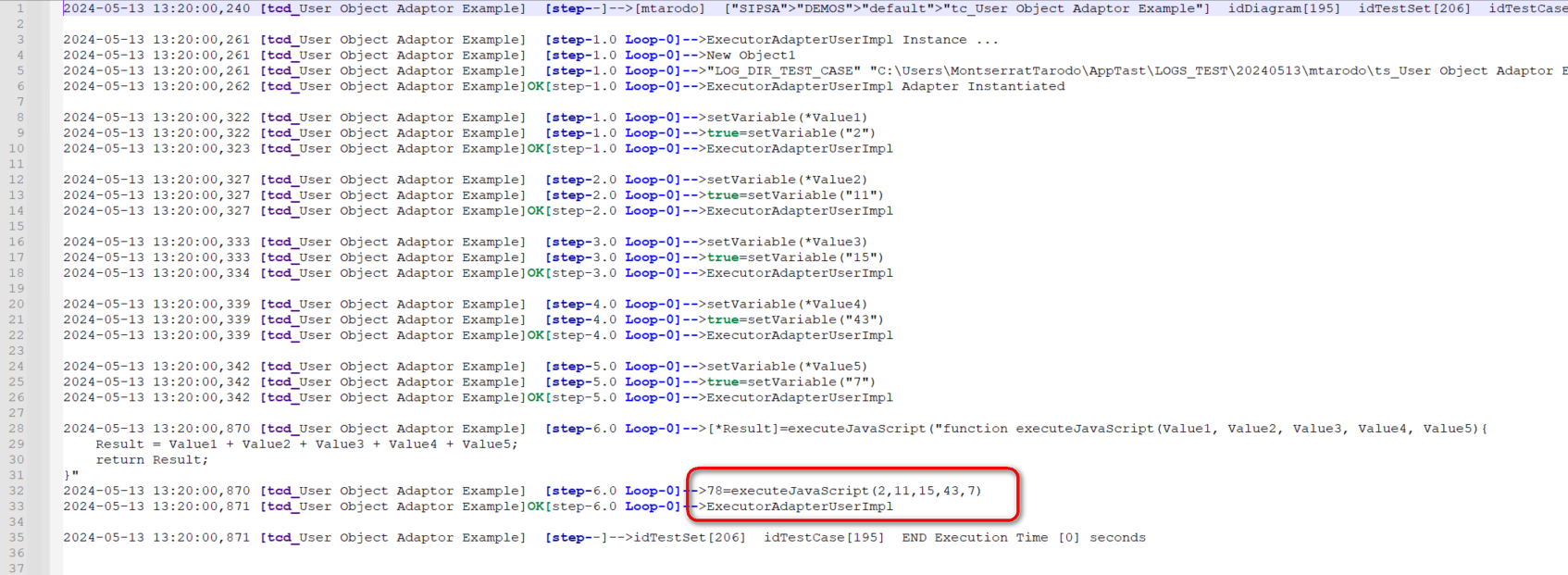
When returning the results, H-TESTT returns a Word document, detailing the steps we have performed, the results obtained from each step, the links to the diagram and the test set, if we have clicked on download document in the Results box.